Display Events from an Outlook Calendar in SharePoint using Office 365 API’s
Is that blog title long enough? Another option is “An Introduction to Office 365 API’s”? maybe?
Some backstory (you can skip this if you don’t like my
UNDERSTANDING YOUR OPTIONS FOR CLIENT-SIDE DEVELOPMENT IN OFFICE 365
Every time you turn around these days it seems like there is a new way to write code for Office 365… SharePoint Designer, Sandbox Solutions, SharePoint Hosted Apps… er… Add-ins… and Office 365 APIs? Holy cow… which do you choose? Is there a best choice? In this session, learn about your options for client-side development options in Office 365, as well as when you should choose which development approach. Learn tips and tricks for accelerating development and deployment time and make the best development decisions for your organization.
Ummmmmm.. Office 365 API’s say what? I’ve really been meaning to dig into those guys but who as the time these days??
So.. there’s the backstory.. if you are still with me we can actually jump into the techie part of it.
The Technical Pieces
There is a LOT of documentation out there about the Office 365 API’s, the authentication pieces, and a lot of sample projects. You could spend hours reading. My problem, well one of my problems, is that I’m NOT a reader. I’m a doer.
What I wanted to do was create a simple, practical demo that showed the average user how to get started with these API’s. I wanted to do something as a script in a SharePoint page without having to involve Visual Studio or Visual Studio Code. I wanted a darn simple example that broke down the pieces.
So (finally) what I got working and what we are going to do is use the Outlook Calendar REST API to query our Outlook calendar in Office 365 and display those events in a calendar on a page in our SharePoint site. In addition we are going to use the jQuery library FullCalendar to display those events in a calendar view. The steps we need to take are:
- Register your Application in Azure AD
- Update the Manifest for your Application in Azure AD
- Authenticate with OAuth2 and retrieve an authentication token
- Make a request to the Outlook Calendar REST API Passing in our authentication token.
- Display the results of the REST request in the FullCalendar library.
Ta.. and da…. Sounds simple? right? well… If I’m being honest… It’s not too bad (just up Jeremy and Richard).
Let’s get started.
Register your Application in Azure AD
The first thing you need to do is register your application in Azure AD. I’m not going to detail all of these steps out. It just takes too much time and my fingers are tired from my previous ramblings. Luckily, you an get step by step instructions (and an example Angular project) here: Getting Started with the Office 365 Unified API (AngularJS).
The key points that will make your life easier if you wish to replicate my example in SharePoint:
For the SIGN-ON URL, from what I can tell it truly doesn’t matter what you put here. 

For the REPLY URL, specify the url to the page where you are going to deploy your script. What’s going to happen is that after you send a user to the authentication server we want it to redirect them back to the page. If this URL is not the same as the page the user came from you will get the error “The reply address ‘

For permissions to other applications, be sure to add “Office 365 unified API (preview)” and specify the “Read signed-in user’s calendars”

Update the Manifest for your Application in Azure AD
This is a critical step, and instead of embedding it in the previous section I wanted to call it out explicitly. You MUST download the Manifest for your application in Azure AD and set the value of “oauth2AllowImplicitFlow” to “true”. Again refer to Getting Started with the Office 365 Unified API (AngularJS). for step by step instructions for how to do this.
If you do not set this value in your manifest you will the error response “response_type ‘token’ is not enabled for the application” Thanks Richard for pointing this out to me.
Authenticate with OAuth2 and retrieve an authentication token
Okay, the next thing we need to do is authenticate with OAuth2 using the Client ID and Reply URL from our Azure AD settings. This will give us an authentication token that we then will pass to our Outlook REST query.
At the end of the day we are simply constructing a URL and directing the user to that url. The format of the url is:
https://login.microsoftonline.com/common/oauth2/v2.0/authorize?client_id=&redirect_uri=&response_type=token’&resource=http%3A%2F%2Foutlook.office.com&scope=https%3A%2F%2Foutlook.office.com%2Fapi%2Fv1.%2Fm%2Fevents
For more detail on this process check out: Get Started with Mail, Calendar, and Contacts REST APIs
Upon successful authentication you will be redirected back to your original page but you will notice a lot of information in your query string. Something like:https://sphillbilly.sharepoint.com/SitePages/Home.aspx#access_token=&token_type=Bearer&expires_in=3599&session_state=819cb419-cea0-4984-abb5-950f4f53cd0b
The URL contains the query string variable “access_token”. This is the token we need to pass to our Outlook REST query. So, we’ll need to store this value and use it. Also, you’ll notice that there is an “expires_in” variable. You COULD take advantage of this and create a cookie that contains the value of your access token and expires based upon this value. That way you will know when you need to renew the cookie. (just some extra advice for free).
At this point we’ve authenticated using OAuth and have our access token.
Make a request to the Outlook Calendar REST API Passing in our authentication token
We now need to take the value of that access token and pass it in the header of our REST query to retrieve the events from our calendar. We are going to be using the “Get a calendar view” REST query which takes start date and end date parameters so that we only retrieve events for a specific date range:https://outlook.office.com/api/{version}/me/calendarview?startDateTime={start_datetime}&endDateTime={end_datetime}
We can use jQuery and the ajax method to make the REST query and pass the access token in the header as follows (where the variable ‘token’ contains our access token):
var call = $.ajax({ url: "https://outlook.office.com/api/v1.0/me/calendarview?startDateTime="+startString+"&endDateTime=" + endString,type: "GET", dataType: "json", headers: { Accept: "application/json;odata.metadata=minimal;odata.streaming=true", 'Authorization': "Bearer " + token } });
Since we are requesting the results back as JSON we can easily parse the data in Fiddler and see the structure of the data like the attendees, dates, body, subject, etc… there’s a LOT of useful information here. For my example I’m just using the start date and the subject to populate our calendar.
Display the results of the REST request in the FullCalendar library
You know, I really should do a blog post about FullCalendar at some point. It’s by far my favorite calendar library and it allows you to pretty easily create calendars using information retrieved from REST queries. The gist of it is we will take the results from our REST query above and push the results into an array called “events”. The objects in the array have the information needed to display our events in the calendar. In other words, without the REST query the calendar functionality looks like:
$('#calendar').fullCalendar({
  height: 450,
  header: {
      left: 'prev,next today',
      center: 'title',
      right: 'month,basicWeek,basicDay'
  },
  disableDragging: true,
  editable: false,
  events: function(start, end, callback) {
//USE THE START DATE AND END DATES HERE TO FILTER YOUR REST QUERY
//MAKE THE REST QUERY
          var events = [];
//LOOP THROUG RESULTS AND PUSH RESULTS INTO EVENTS ARRAY
              events.push({
                          title: //EVENT TITLE
                          start: //EVENT DATE
                      });
          }

          callback(events);

  }

;
And that’s basically all there is to it!
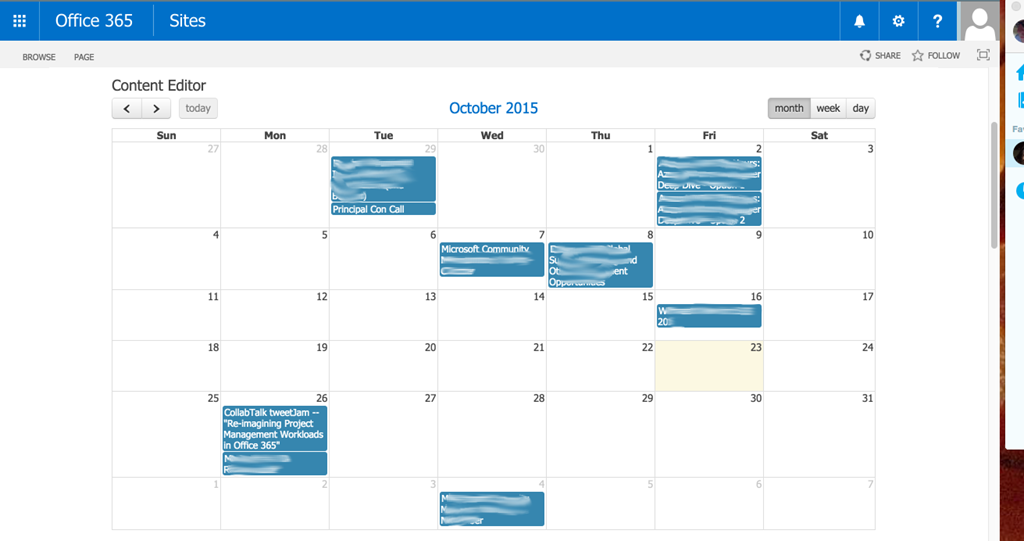
You could easily write additional functionality with FullCalendar to display more information about an event if a user click on it and create some other cool functionality. You can also retrieve events from other calendars that belong to the signed in user using the calendar’s ID.
The Script
Below is the entire script that I created for this effort. We can deploy this script in true SharePoint Hillbilly fashion by uploading the script to a document library, adding a Content Editor Web Part to a Page, and then linking that Content Editor Web Part to your script that you uploaded. No Visual Studio, no SharePoint Add-In, no separate web server needed…
Also please note, this script is NOT for production. Don’t do it. It’s for teaching purposes only. At least one bad thing I do is determine if a user is logged in by checking to see if the token exists in the URL. Ideally you would place this token in a cookie and expire the cookie accordingly so that you can renew it. If you were to place this script into production users would get errors if the token expired and they were trying to use the expired token.
Got it?? sigh… yeah.. I’ll be expecting your comments explaining to me that the page won’t load when the token expires….
"text/css"
'calendar'
>
Anyway, I hope you guys learned something. I hope this demonstrafies the entire OAuth and Office 365 API process a little bit! As always, thanks for stopping by.

No comments:
Post a Comment